Knoi Chrome Extension Launch
Use Knoi right from your browser. Create AI meeting notes with one click during Zoom, Google Meet, Teams, and other web-based video calls.
Install from Chrome Web Store →
Just Earphones — That's All You Need
The biggest advantage of the Knoi Chrome Extension is that it records both your voice and the other person's voice without a separate microphone. Just plug in your earphones and both sides of the conversation are captured.
- Your laptop's built-in mic + earphones is all you need
- The other person's audio from the video call is recorded too
- No external microphone or special equipment required
How to Use — 5 Simple Steps
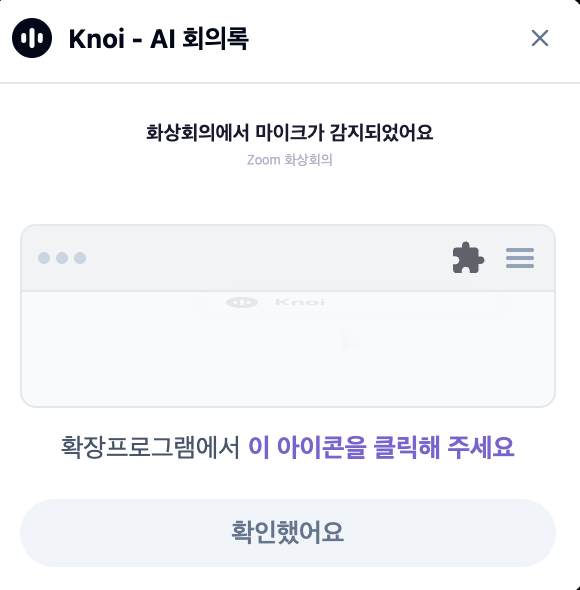
Step 1. Auto-Detect Video Calls
When you join a Zoom, Google Meet, or other video call, Knoi automatically detects the microphone. No setup needed — just click the extension icon when the notification appears.
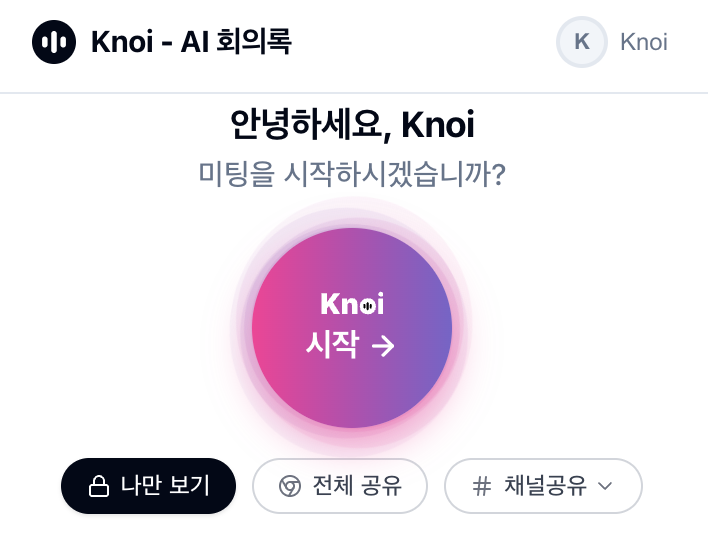
Step 2. Start Screen
Click the extension to see the start screen. Hit the "Start Knoi" button to begin recording. You can also choose your sharing settings here.
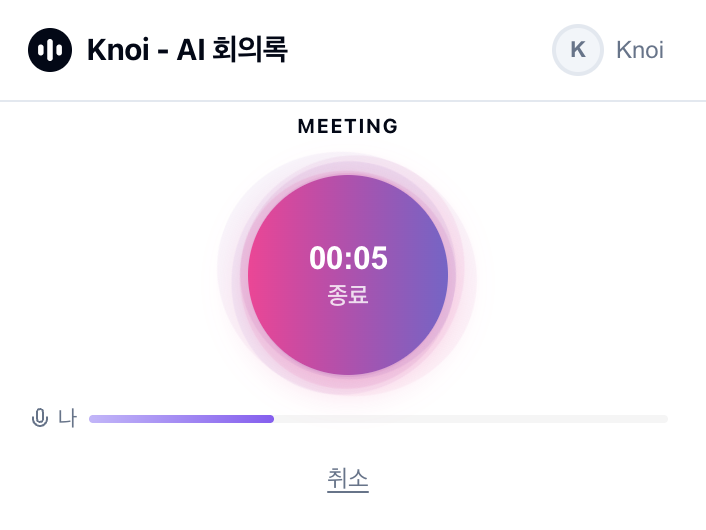
Step 3. Recording
Once recording starts, you'll see a timer and audio level indicator. Monitor your microphone in real-time to make sure everything is working.
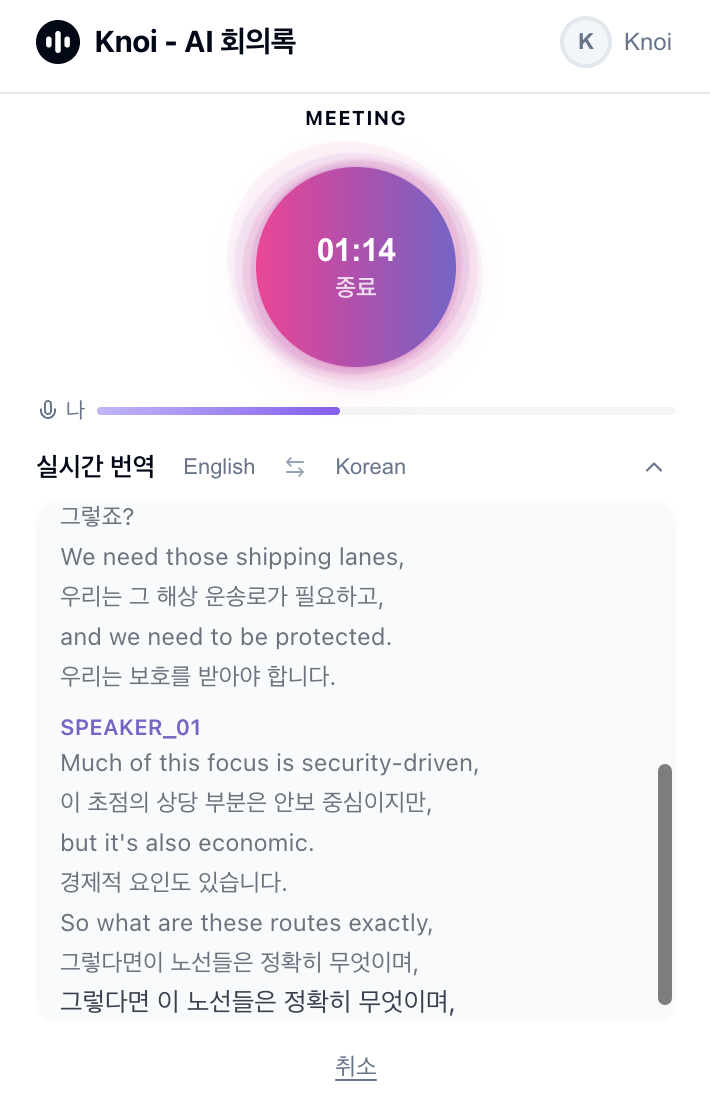
Step 4. Real-Time Translation
Use real-time translation during recording. English to Korean, Korean to English — follow the conversation flow as it happens.
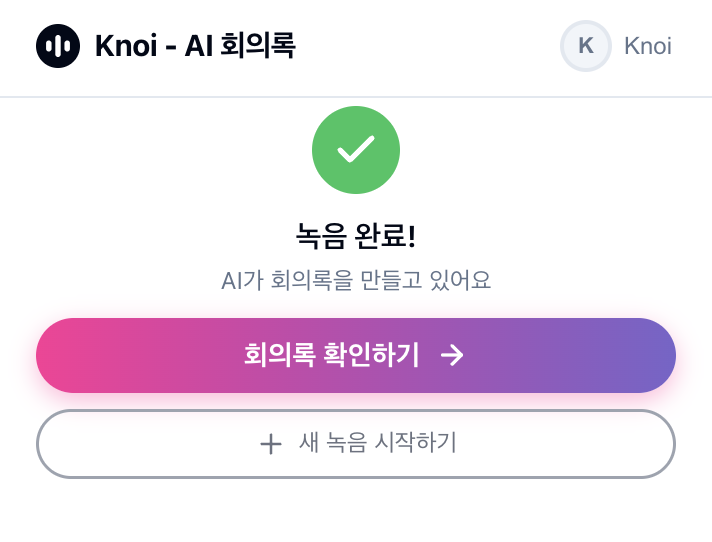
Step 5. Done → AI Meeting Notes
When you stop recording, AI automatically generates meeting notes. Click "View Meeting Notes" to see the summary right away.
Install Now
Install from Chrome Web Store →